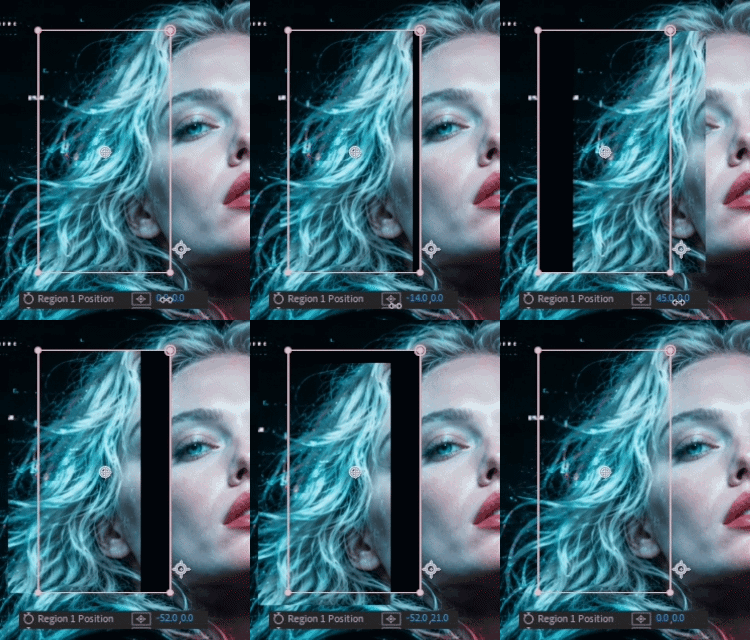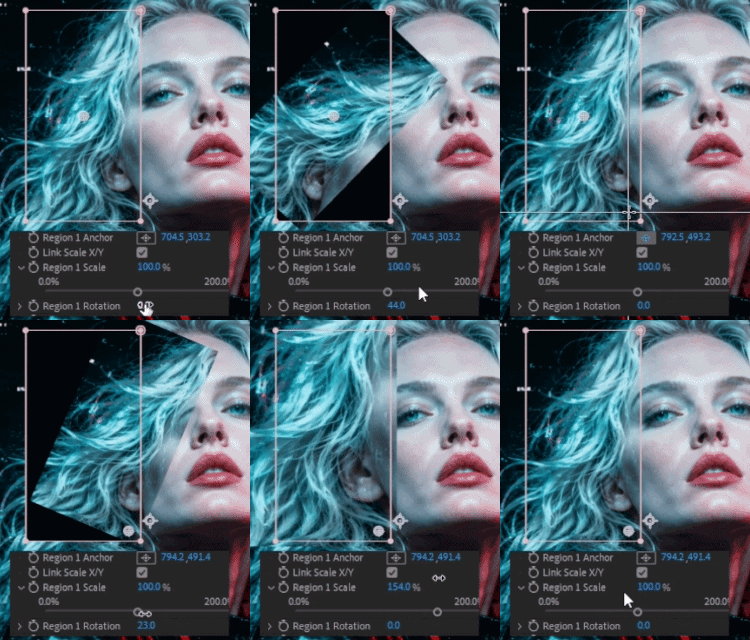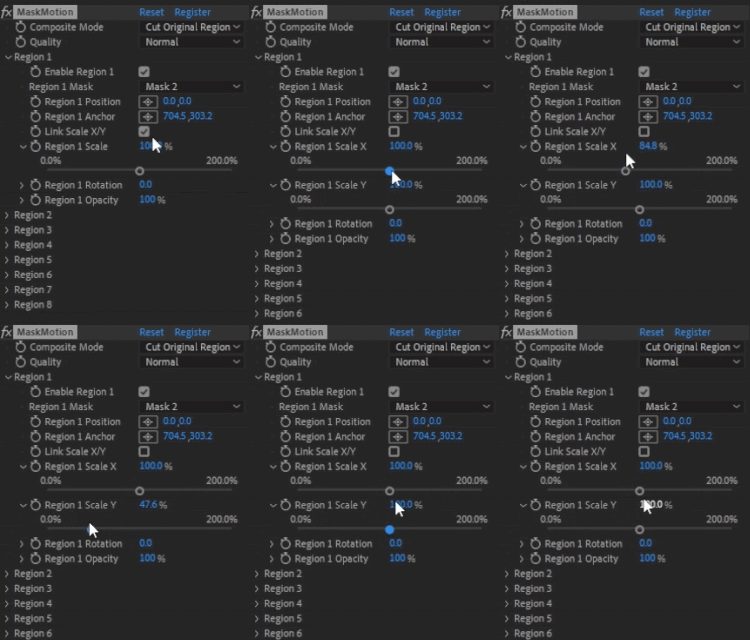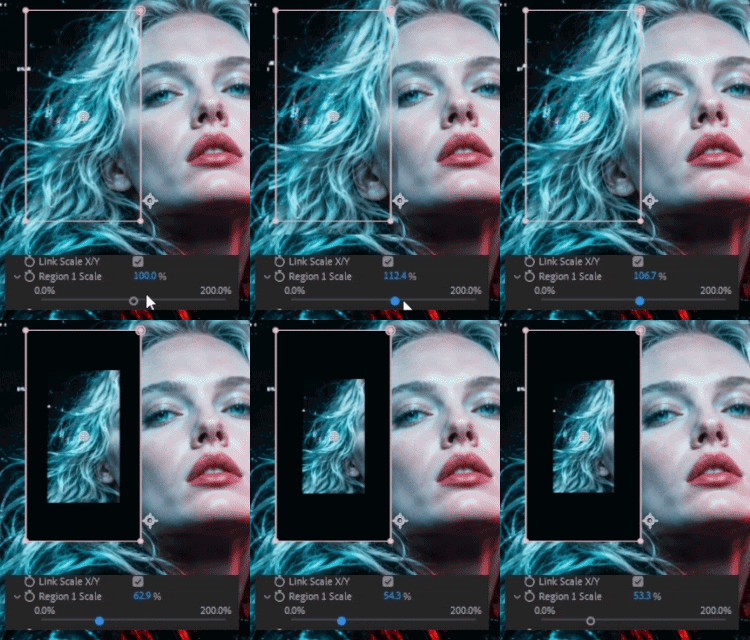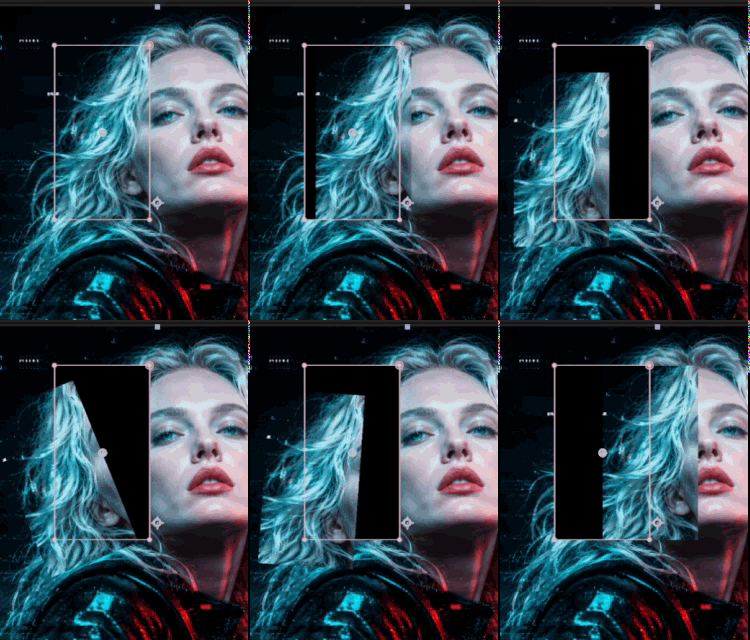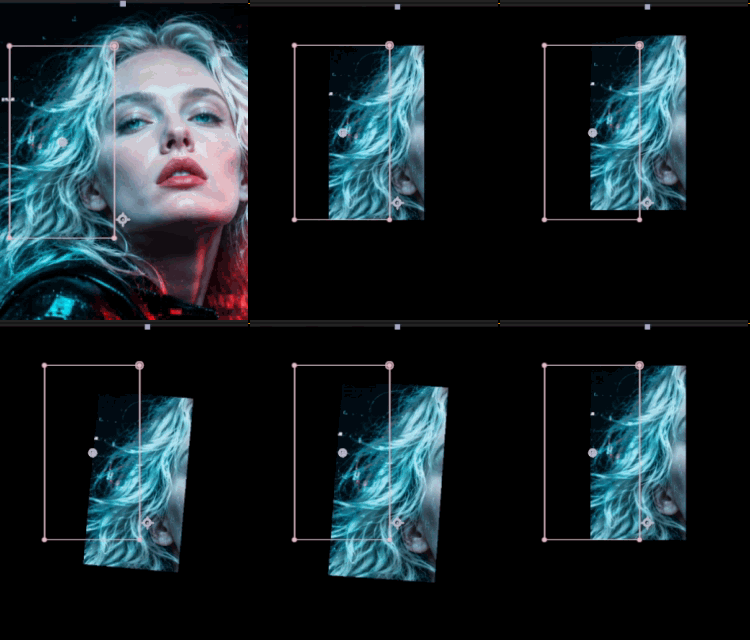
When you want to animate 8 masked parts of an image in After Effects, the traditional workflow forces you to duplicate the layer 8 times. Your timeline becomes cluttered, renders slow down, and making global changes becomes painful.
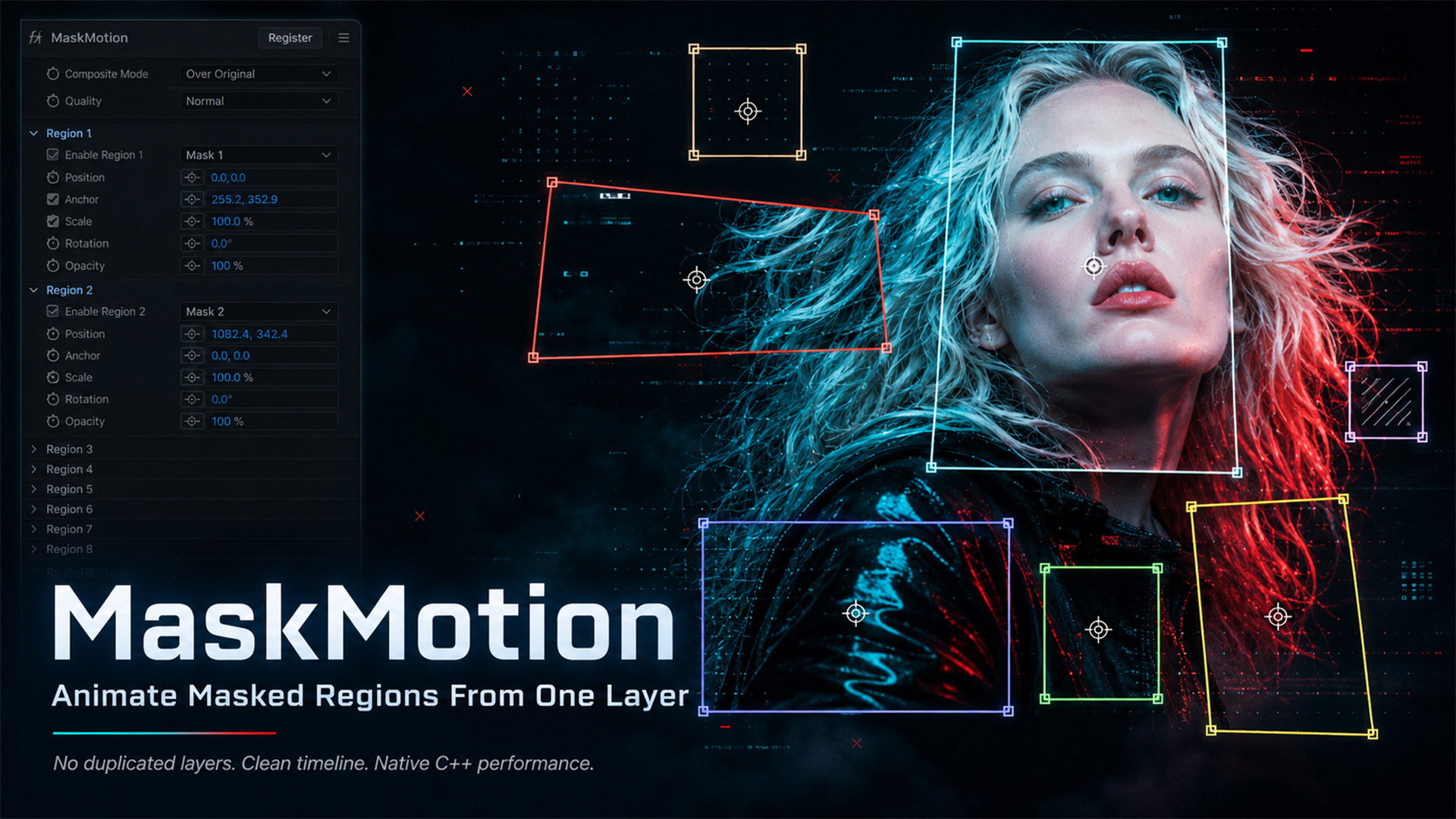
MaskMotion
Animate every masked region independently — without duplicating layers.
- Version
- 1.0.0
- Product type
- Native C++ After Effects plugin
- Compatibility
- After Effects 2022 or later
- Availability
- aescripts + aeplugins
SEE IT IN MOTION.
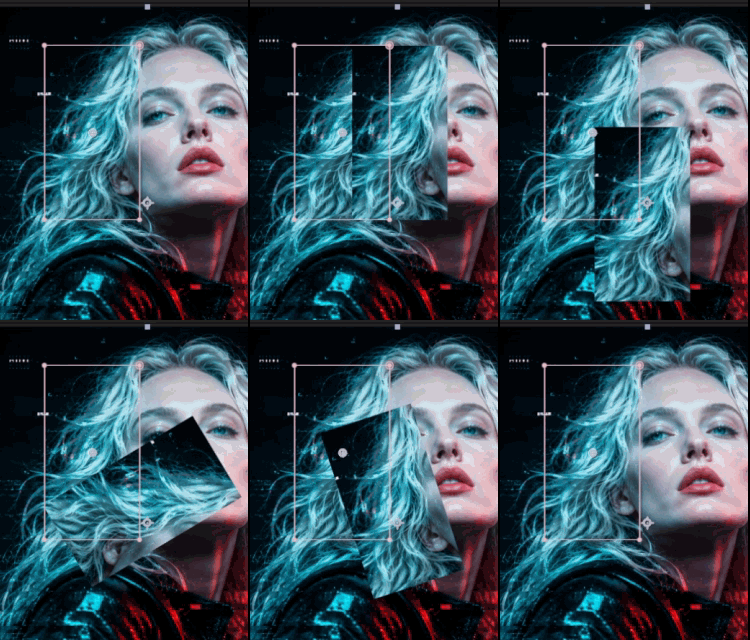
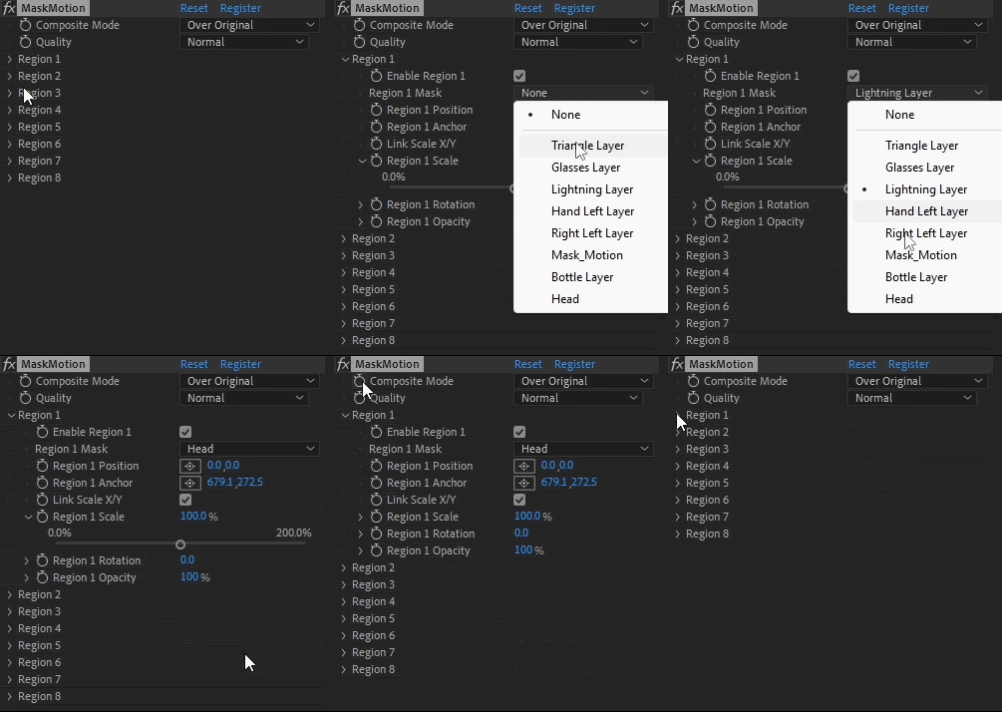
8 masks should not mean 8 layers. MaskMotion is a native C++ After Effects plugin that lets you animate each masked region independently — all from a single layer. Apply the effect, assign your masks to regions, and animate Position, Anchor, Scale, Rotation, and Opacity per region. Your timeline stays clean.
Everything you need,
nothing you don't.
8 Independent Regions
Up to 8 regions per effect instance, each mapped to one of your layer's existing masks.
Automatic Mask Detection
Region dropdowns update automatically to match your mask names — no manual wiring.
Full Keyframe Support
Animate Position, Anchor, Scale, Rotation, and Opacity on every region with standard AE keyframes.
8 / 16 / 32-bit Color
Supports all After Effects color depths for maximum flexibility in high-end pipelines.
Multi-Frame Rendering
Fully MFR-compatible. No performance bottlenecks when AE parallelizes your render.
Smart Render Support
Uses pre-render data for stable, correct output. Parameters checked via AE checkout APIs.
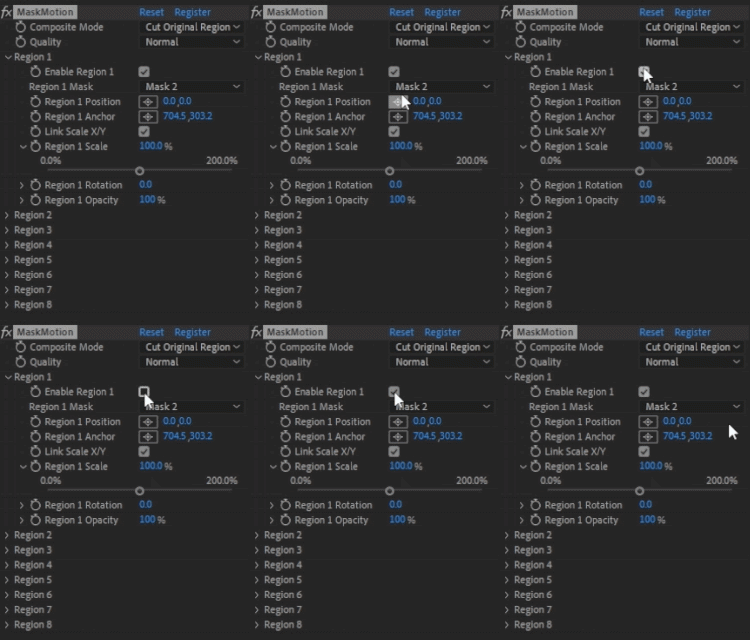
Per-Region Transform Controls

Enable
Toggle the region on or off without losing settings

Mask
Select which layer mask this region uses

Position
Move the region in X and Y (in pixels)

Anchor Offset
Shift the transform anchor relative to the mask center

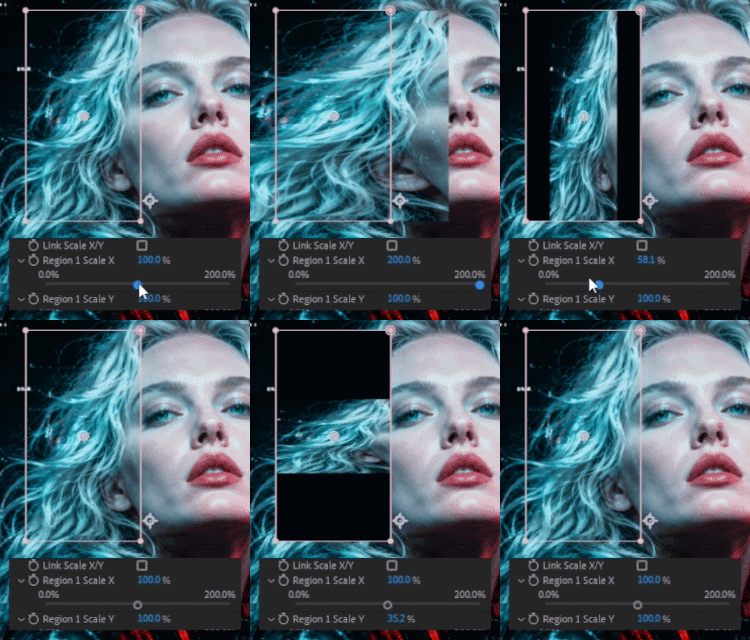
Link Scale X/Y
Toggle between uniform scale and independent axis control

Scale
Uniform scale percentage

Scale X / Scale Y
Independent axis scale (available when Link is off)

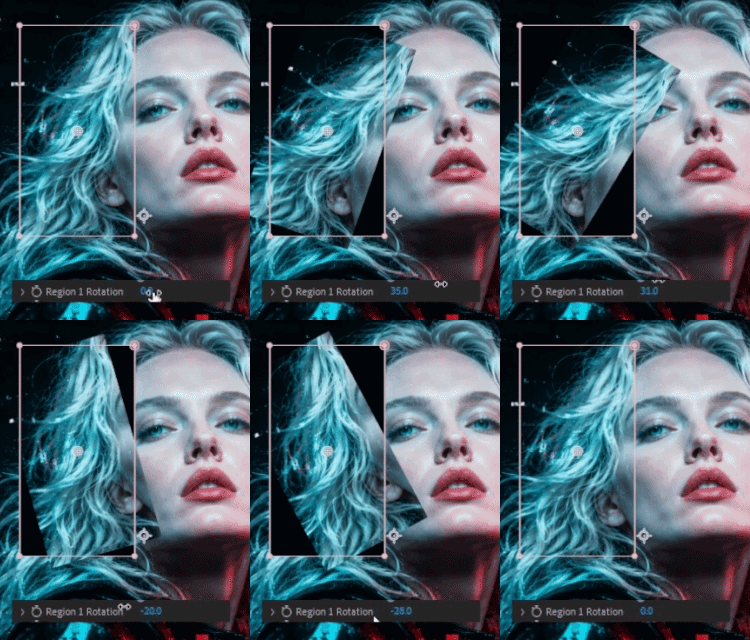
Rotation
Rotation in degrees around the anchor point

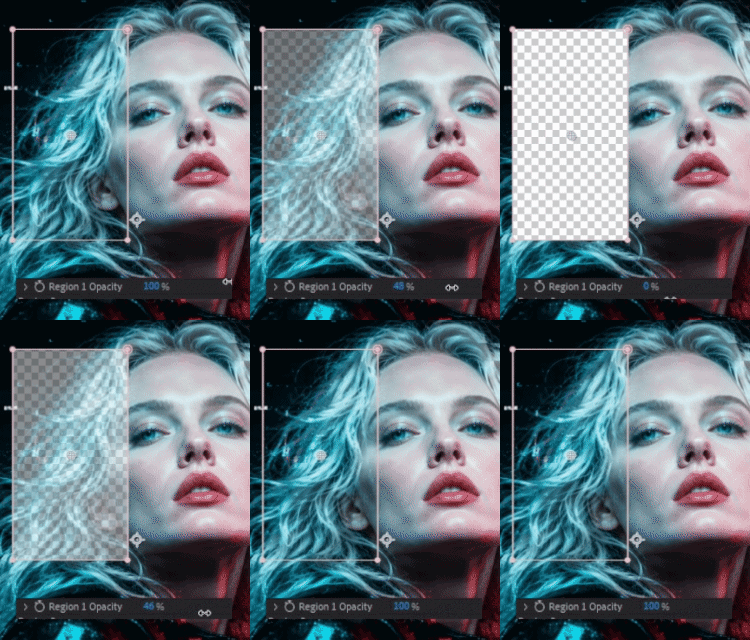
Opacity
Opacity percentage for this region
How regions blend with the original
Over Original
Transformed regions composite on top of the original layer
Cut Original Region
Original masked area is removed; replaced by the transformed version. Best for character animation.
Regions Only
Only the transformed regions are visible; original layer is hidden

Over Original

Cut Original Region

Regions Only
Draft
Fast preview — bilinear sampling. Use while animating keyframes.
Normal
Balanced quality for standard work
High
High-quality sampling for final renders. Switch to this before exporting.
Up and running in 5 steps
- Draw your masks on a layer and name them — e.g. Head, Left Hand, Eyes, Body
- Apply Effect → Discribe → MaskMotion to the layer
- For each Region, select the corresponding mask from the dropdown — mask names appear automatically
- Adjust Position, Scale, Rotation, and Opacity per region
- Set keyframes and animate
Get the plugin into After Effects
The easiest way is the aescripts + aeplugins manager app. For a trial, select Add Trial from the Account menu.
🪟 Windows
Copy MaskMotion.aex to your Plug-ins folder:
🍎 macOS
Copy MaskMotion.plugin to your Plug-ins folder:
After installation, find it under Effect → Discribe → MaskMotion and restart After Effects.
What you need to run it
🪟 Windows
→ After Effects 2022 (22.0) or later
→ Windows 10 / 11 (64-bit)
🍎 macOS
→ After Effects 2022 (22.0) or later
→ macOS 11 Big Sur or later
→ Universal Binary — native on Apple Silicon (M1/M2/M3) and Intel
Get the most out of MaskMotion
- Name your masks first. The plugin reads mask names automatically. If you add the effect first and name masks later, close and reopen the Effect Controls panel to refresh the dropdowns.
- Anchor Offset is relative to mask center. 0, 0 always means the centroid of the selected mask — no matter where it is in the composition. Moving the offset shifts the pivot for rotation and scale.
- Use Cut Original Region for character animation. It removes the original area so transformed regions don't overlap it — cleanest result for characters and product explode workflows.
- Draft while animating, High before exporting. Switch quality modes to maximize speed during keyframe work, then flip to High for final output.
- Need more than 8 regions? Precompose the layer and apply a second MaskMotion instance on top.
- Unused regions are harmless. Regions with no mask selected do not affect the output — leave them empty safely.
v1.0.0 — what's not yet supported
- Maximum 8 regions per effect instance
- Works on raster layers (footage, solids, precomps) only — shape layers and text layers are not supported
- Mask Feather soft-edge blending on transformed regions is not supported in v1.0.0
- Mask Expansion values are not read in v1.0.0
- Optimized for straight-edged masks (rectangles, squares, polygons) — curved masks like circles or ellipses are not currently supported
Changelog
- 8 independent regions with full transform controls (Position, Anchor Offset, Scale, Rotation, Opacity)
- Automatic mask name detection
- Composite modes: Over Original, Cut Original Region, Regions Only
- Quality modes: Draft, Normal, High
- Anchor Point Offset per region (defaults to mask center)
- Full keyframe animation support on all parameters
- Link Scale X/Y toggle per region
- Smart Render and Multi-Frame Rendering support
- 8-bit, 16-bit, and 32-bit color depth support
- Windows (.aex) and macOS Universal Binary (.plugin)
MaskMotion
Animate every masked region independently — without duplicating layers.