Select the mask you want to use, and MaskPin automatically fits the pins to that selected mask. You can also render the mask outline, vertices, corner pins, and connecting frame directly into the final output.
Major Update
MaskPin v1.2.0 — Update Overview
What’s New
MaskPin v1.2.0
The new update adds mask selection for multi-mask layers and a complete renderable-guide system for creating technical overlays, breakdown graphics, HUD visuals, and tutorial-style outputs.
Select a Mask. Pins Fit Automatically.
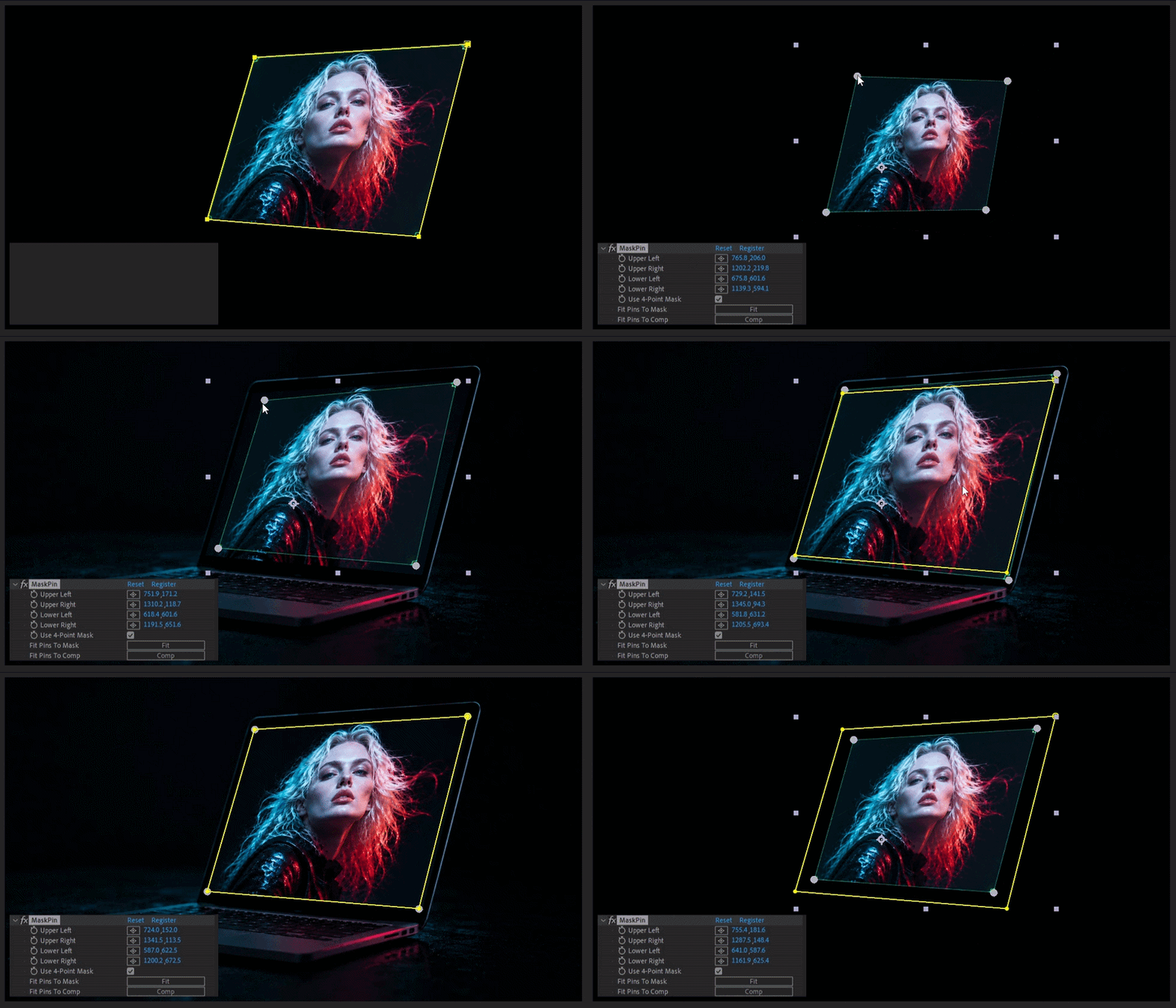
On layers containing multiple masks, select the mask you want MaskPin to use. As soon as you choose it, MaskPin automatically fits the corner pins to that mask — no extra Fit Pins To Mask click is required.
Render Guides in the Final Output
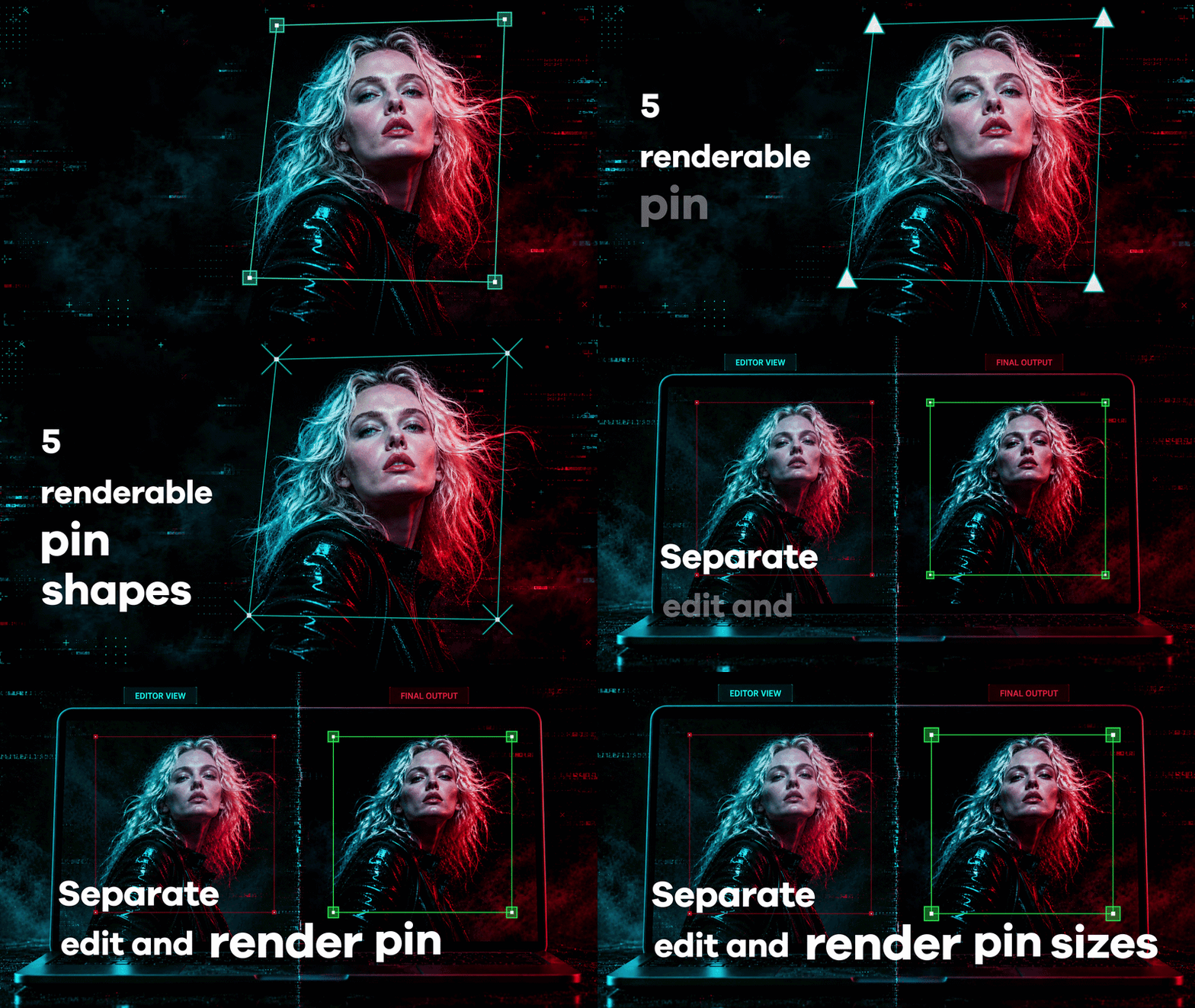
Render the selected mask outline, original mask vertices, corner pins, and connecting frame directly into your final image or animation.
Customize Guide Color, Width, and Opacity
Match the rendered guides to your design with independent Guide Color, Guide Width, and Guide Opacity controls.
Independent Pin Size and Five Render Shapes
Adjust the interactive Pin Size separately from Render Pin Size, then choose Square, Circle, Triangle, Plus, or X for the rendered pins.
Mask Selection
Choose one mask from layers containing multiple masks.
Automatic Selected-Mask Fitting
Selecting a mask automatically fits the corner pins to it.
Renderable Guides
Render mask outlines, vertices, corner pins, and the connecting frame.
Guide Appearance
Control guide color, width, and opacity independently.
Interactive Pin Size
Adjust the size of the handles used while editing.
Render Pin Size & Shapes
Use an independent render size with Square, Circle, Triangle, Plus, or X.
Stop dragging corner pins from the comp edges.
Traditional corner pin workflows usually start from the full layer or composition bounds — even when your real target is a smaller masked area.
That means manually dragging each corner into place, matching the mask by eye, and repeating the setup when the mask changes.
MaskPin removes that setup step by fitting the pins directly to the mask area.
Three focused tools. One clean workflow.
Fit pins directly to your mask.
Use the actual 4-point mask vertices.
Drag pins directly in the Composition viewer.
Fit Pins To Mask
Apply MaskPin, click Fit Pins To Mask, and the four perspective pins are placed directly around your mask area.
Use 4-Point Mask
Perfect for angled screens, phones, laptops, posters, signs, billboards, and perspective surfaces.
Composition Viewer Handles
Fine-tune the result visually by dragging the custom handles directly in the After Effects Composition viewer.
Native effect. No panel. No precomp workaround.
MaskPin is a lightweight native After Effects plugin. No CEP panel, no external script, and no required precomp workflow. Everything runs directly inside the effect.
Native Plugin
Built for After Effects.
No CEP Panel
Simple and direct.
No Precomp Required
Work directly on your layer.
Best for
Screen replacement
Phone and tablet UI mockups
Laptop screen placement
Poster and sign replacement
Billboard mockups
Angled surface pinning
Perspective layout and alignment
Fast masked-region setup inside larger compositions
Motion design mockups
UI walkthrough compositing
Built for setup — not tracking.
MaskPin is not a full tracking or match-moving system and does not replace Mocha or planar tracking tools.
It is built for one specific workflow: fitting perspective pins to a mask area so you do not have to start from the comp or layer edges.
Compatibility
Adobe After Effects 2022 or later recommended
Windows: MaskPin.aex
macOS: MaskPin.plugin — Intel x86_64 + Apple Silicon arm64