Uses each preset’s own Nest, Duplicate, and frame-rate settings.
After Effects
Social Exporter for After Effects
Save hours of manual work by creating social-ready compositions for YouTube, Instagram, TikTok, Facebook, LinkedIn, Pinterest, Twitter/X, and custom formats in just a few clicks.
- Version
- 1.1
- Availability
- aescripts + aeplugins
Purchase and trial management are handled by aescripts + aeplugins.
See it in action
One composition. Every platform.
Stop rebuilding social formats manually.
Social Exporter applies presets to the currently active After Effects composition, creates the required compositions, and sends them directly to the After Effects Render Queue. Choose any output format supported by After Effects, including MP4, MOV, and ProRes.
YouTubeShortsInstagram FeedReelsTikTokFacebookLinkedInPinterestTwitter / X
Complete workflow
Pick platforms and export.
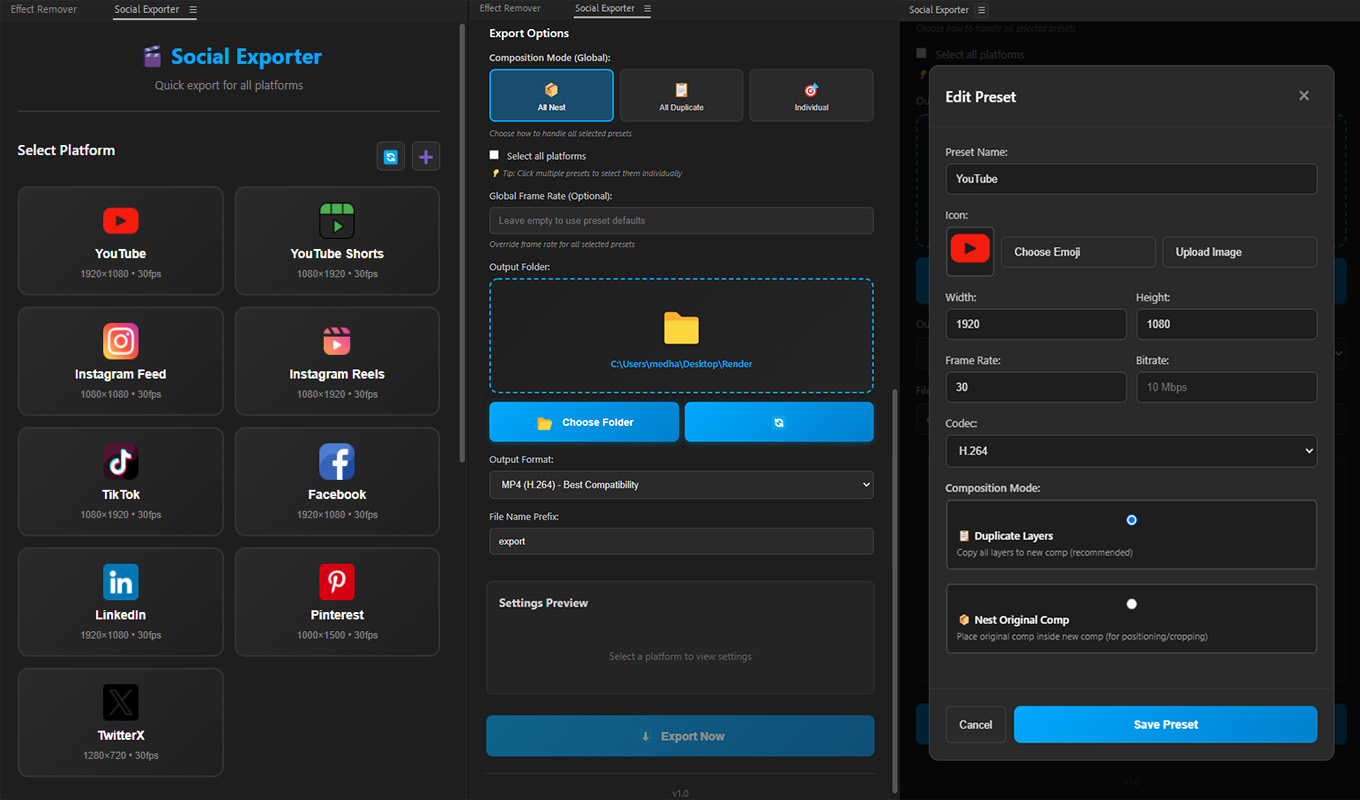
Save the project, open the composition you want, click Refresh to create the Render folder, select your platforms, then click Export Now. Social Exporter prepares the required compositions and sends them to the Render Queue.
Ready-made and custom presets
Popular formats are ready to go.
Use built-in presets for major platforms, or create custom presets with your own name, icon, width, height, frame rate, and Nest or Duplicate mode. Edit or delete custom presets and reset the defaults when needed.
Three export modes
Choose the structure that fits each job.
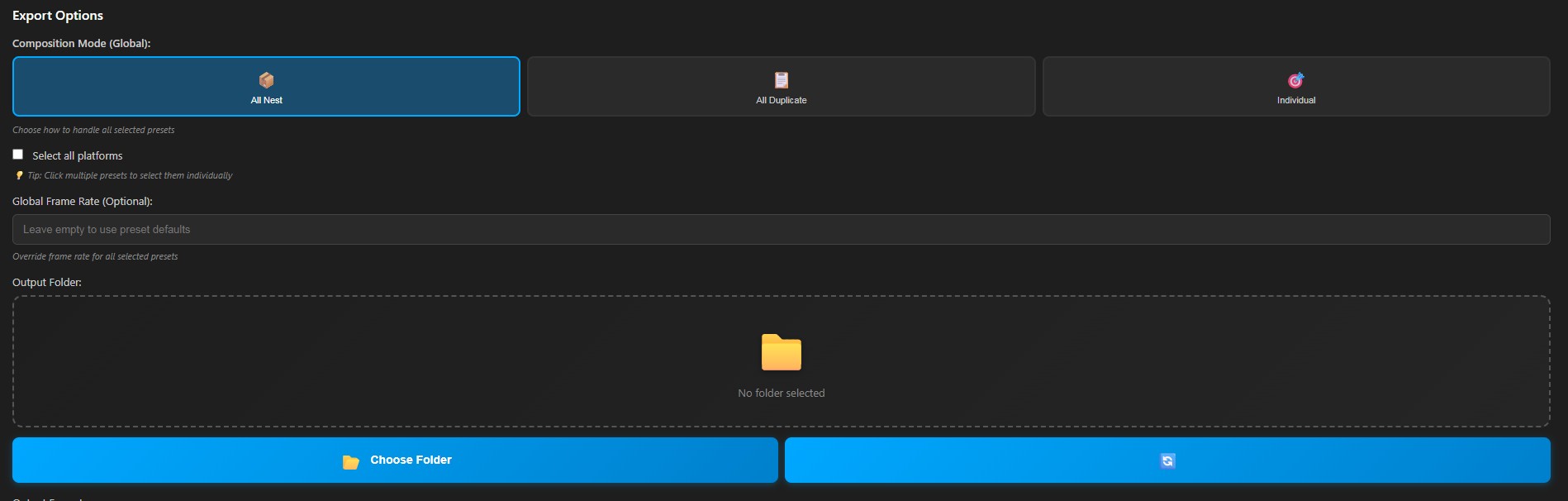
Forces selected presets to create compositions with all layers copied inside.
Places the active composition inside new compositions for easy cropping and repositioning.
Render Queue integration
Review before the final render.
Set the output location and optional filename prefix, then let Social Exporter create the required compositions and send them to the After Effects Render Queue. You keep full control of the final format and render settings.
Important: Social Exporter always applies presets to the currently active composition. Make sure the correct composition is open and selected before clicking Export Now.
Quick Start
Your first export.
- Save the After Effects project.
- Open and select the composition to export.
- Click Refresh to create or update the Render folder.
- Select the required platform presets.
- Click Export Now, review the generated compositions, then render.
Full tutorial
Learn Social Exporter step by step.
Edit once. Export every format.
Prepare social-ready compositions and send them to the After Effects Render Queue in just a few clicks.